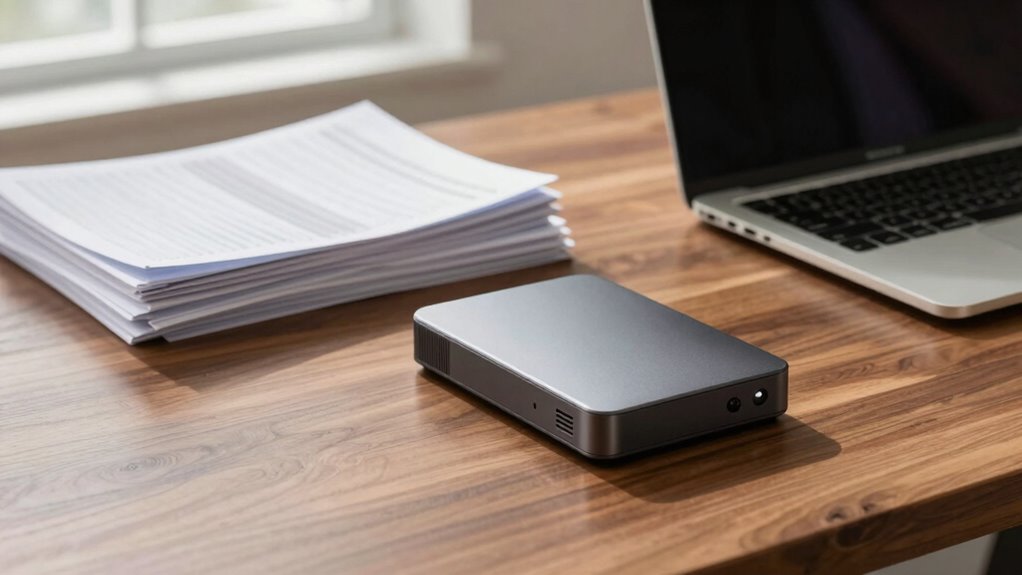

To safeguard your important documents, regularly update your backup drives and keep multiple copies in different locations. Use secure encryption to prevent unauthorized access, and choose cloud storage with automatic backups for added safety. Keep your backups in secure, environmentally protected areas, and verify their integrity frequently by testing restore procedures. Following these essential steps ensures your data stays safe and accessible when needed—and if you want to learn more, you’ll find useful tips to strengthen your backup strategy.

Get smart everyday buys delivered free with Prime
- Fast, free delivery on millions of items
- Prime Video, Amazon Music and more included
- Member-only deals all year
Key Takeaways
- Regularly update and verify backups to ensure data integrity and recoverability.
- Use strong encryption for all backup data during transfer and storage.
- Keep backup drives in secure, protected locations away from environmental hazards.
- Implement automated backup schedules to minimize human error and maintain consistency.
- Maintain multiple copies across different physical and cloud locations for added resilience.

Having a backup drive for your important documents is essential in today’s digital world, where data loss can happen unexpectedly. Whether it’s due to hardware failure, theft, or accidental deletion, having a reliable backup can save you from significant stress and potential setbacks. When setting up your backup system, one fundamental rule you shouldn’t overlook is guaranteeing your data’s security through proper encryption methods. As you transfer files to your backup drive, consider using encryption to protect sensitive information from unauthorized access. Modern encryption methods, such as AES (Advanced Encryption Standard), are robust and widely supported. They help guarantee that even if someone gains access to your backup, they won’t be able to read your documents without the decryption key. Incorporating encryption methods into your backup process is a crucial step for safeguarding your data. In addition to encryption, incorporating cloud storage as part of your backup strategy can be highly advantageous. Cloud storage services often offer automatic backups, which means your important documents are continuously protected without manual intervention. This provides an extra layer of security and convenience. When choosing a cloud service, look for options that include end-to-end encryption, so your files are encrypted during transfer and while stored on the provider’s servers. This way, your data remains protected from potential breaches or unauthorized access. Ensuring your backups are regularly updated is also vital to maintaining data integrity and availability over time. Additionally, understanding the importance of data redundancy can help you create a more resilient backup plan. A key rule for backup drives is to keep multiple copies of your critical documents. Relying solely on one backup—whether on a physical drive or in the cloud—can still leave you vulnerable if something happens to that single copy. By maintaining multiple backups across different locations, you reduce the risk of losing everything in a disaster. For instance, you might keep a local backup on an external drive and another in the cloud, regularly updating both. This approach ensures you can recover your files even if one backup method fails. To further enhance your backup strategy, consider backup verification to confirm your files are safely stored and recoverable. It’s not enough to just create a backup; you need to test restoring files from it. This practice helps identify any issues early, such as corrupted files or outdated backups, so you can address them before a crisis occurs. Additionally, keep your backup drive in a secure location, protected from physical damage, theft, or environmental hazards like fire or flooding. Implementing automated backup schedules can also help ensure that your backups are consistently maintained without manual effort, reducing the chance of human error.
external hard drive with encryption
As an affiliate, we earn on qualifying purchases.
As an affiliate, we earn on qualifying purchases.
Frequently Asked Questions
How Often Should I Update My Backup Drive?
You should update your backup drive regularly, ideally following a consistent backup schedule, such as weekly or bi-weekly, depending on how frequently your files change. Before updating, make certain your data is protected with strong encryption protocols to keep it secure. Regular updates prevent data loss and keep your backups current. Adjust your schedule based on your usage and importance of the files, but consistency is key for reliable protection.
What Types of Files Should I Back up Regularly?
You should back up essential files regularly, including documents, photos, videos, and work files. Make sure you use file encryption to protect sensitive data. Maintain backup redundancy by saving copies on multiple drives or cloud services. This way, even if one backup fails, your files remain safe. Prioritize backing up files that are irreplaceable or difficult to recreate, and update backups consistently to keep everything current and secure.
Can I Use Cloud Storage as a Backup Drive?
Think of cloud storage as a digital safety net—yes, you can use it as a backup drive. It acts as a cloud-based vault, protecting your files from physical damage or theft. While it’s convenient for quick access, remember it shouldn’t be your only backup. Combine cloud storage with physical backup drives for complete protection, ensuring your important documents are always safe, no matter what happens.
How Do I Securely Store My Backup Drive?
To securely store your backup drive, start with strong encryption techniques like AES-256 to protect your data from unauthorized access. Keep the drive in a physically secure location, such as a locked cabinet or safe, to prevent theft or damage. Regularly update your security measures, and consider using two-factor authentication if your drive supports it. By combining encryption with physical security, you guarantee your backups stay safe and private.
What Should I Do if My Backup Drive Fails?
If your backup drive fails, don’t panic. For example, imagine you lost critical files before a big project deadline. First, check hardware compatibility and connections to rule out simple issues. Then, use data recovery techniques like specialized software to retrieve files. If these steps don’t work, consider professional data recovery services. Regularly testing your backup drives guarantees you catch failures early and minimize data loss.
As an affiliate, we earn on qualifying purchases.
Conclusion
By following these backup drive rules, you’ll never be caught off guard when important documents suddenly become inaccessible. It’s funny how often a simple backup can save you from unexpected setbacks—just like that time I almost lost a vital contract, only to find a backup copy hidden away. Stay diligent, keep your backups updated, and remember: a little prevention goes a long way. After all, coincidence favors the prepared.
secure encrypted USB flash drive
As an affiliate, we earn on qualifying purchases.
As an affiliate, we earn on qualifying purchases.
As an affiliate, we earn on qualifying purchases.
Halloween Picks
halloween
As an affiliate, we earn on qualifying purchases.